
How to Request Consultancy?
|
The 'Activities' tab is designed to be interactive. Every appointment you make with MKG or that is made for you by a colleague can be found here as an activity. Whether it is an appointment with an MKG consultant, an action as part of the implementation plan, or a course. You can also add your own action points here. |
You first start a new activity above the calendar. The detailed information about the activity becomes visible on the right side of your screen. By default, 'Action Point' is pre-filled as the type.
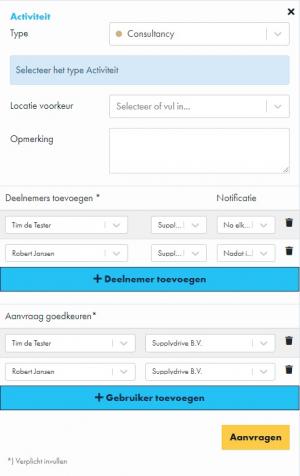
Step 1. Select the Type
The first step is always to select a type. In this case, select the type 'Consultancy'. Optionally, you can then fill in the preferred location and add a comment.
Step 2. Add One or More Participants
Adding one or more participants is mandatory for this activity. As the applicant, you are automatically added as a participant to this activity, and your company name is pre-filled. Choose whether or not you want to receive a notification during the process of this request.
Via the Add Participant button, you can add a colleague to this activity. Here too, you choose whether they receive a notification.
Step 3. Add One or More Users
The presence of one or more users is also mandatory for this activity. Users are the individuals who need to approve the appointment. As the applicant, you are automatically added as a user to this activity, and your company name is pre-filled.
Via the Add User button, you can add a colleague who needs to approve this activity.
Step 4. Request
Have all participants and users been added? Click on Request. The detailed information of this activity will then disappear from your screen. In your calendar, the created item will be displayed in italics on the date of the request. By clicking on the item in the calendar, you can reopen the activity, where you will find the message "This activity is pending".
The Follow-up
The MKG consultant linked to your company is now automatically added to the activity. For the consultant, this activity will become visible in their action list with the status 'Yet to be scheduled'. Once the consultant has approved the request by selecting a date, the activity will become visible in your action list. You can then approve the request. The activity is only definitively scheduled once all users have approved the request.
- Published:24 feb 2026 23:12
- TypeHandleidingen
- Category
- Product
- AvailabilityOpenbaar