
Adding Actions to the MKG Start Page
|
The operation of MKG | How do you add actions to the MKG Start Page? |
How do you add frequently used actions to your start page?
After implementation, MKG is delivered by default with the start page shown below. However, it is likely that during your work you use other modules and need to perform different actions. You can easily create your personal start page by adding frequently used modules and actions yourself.
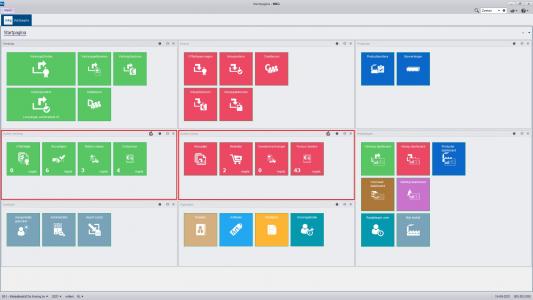
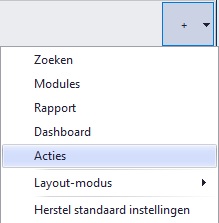
At the very top right of your screen you will find a plus sign. The dropdown includes options such as 'Search', 'Modules', 'Report', 'Dashboard', and 'Actions'. The option 'Restore default settings' ensures that the MKG Start Page is displayed as shown in the image above.
Select the option 'Actions'. This will create an empty block on your start page. Using the gear icon, you can name this block and add your own frequently used actions from MKG, which you can then arrange in the desired order. The size of the action tiles is not adjustable.
All action tiles include a counter indicating how many records you can currently execute that action on. By setting the 'Refresh interval', you determine whether—and if so, how many seconds—the action is refreshed automatically. In this way, you can fully customize the action group(s) on your start page according to your own preferences. The settings are saved.
|
Knowledge Center | Related: |
- Published:24 feb 2026 23:11
- TypeHandleidingen
- Category
- Product
- AvailabilityOpenbaar